Globus Downloads for data from the VT Libraries Research Data Sharing platform
The VT Libraries host a research data sharing platform for open data via Virginia Tech Data Repository. Most data are available as direct downloads from that platform, but exceptionally large datasets require special tooling. ARC and the VT Libraries have collaborated to make these datasets available using Globus.
Globus itself is an open platform developed and managed by the University of Chicago for data sharing among and from many different institutions. It provides a federated toolset for sharing and accessing data and conducting efficient point-to-point data movement between arbitrary endpoints. We have additional general use information on Globus in another documentation page that can be found here.
There are many videos for completing different tasks using Globus on ARC clusters at Globus videos.
Steps to Downloading Data with Globus from Virginia Tech Data Repository
Here is an overview of the steps needed to download large research datasets from Virginia Tech Data Repository made available through Globus. Each step is explained in more detail in its associated section below.
Establish a destination endpoint for the data to be transferred to (Globus Connect Personal for a personal computer OR another existing Globus institutional subscription endpoint)
Navigate to the “Virginia Tech Data Repository - Libraries” collection on https://globus.org/
Select the correct path for the data (left panel) and the correct location you would like the data to be transferred to (e.g. Globus connect personal)
If you have been provided the Globus Guest Collection link from the dataset landing page on Virginia Tech Data Repository, you may use that link to bring you directly to step 3 above. You must make sure that you have a Globus account and have either downloaded Globus Connect Personal (for your local computer) or have another Globus endpoint for the data to be pulled to.
Step 1: Create an Endpoint for the data to be transferred to
Any time you are downloading data, you need a source and a destination. This is the same for Globus Collections. The source is the Globus Guest Collection and the destination is up to the person downloading the data. You have two different options:
Globus Connect Personal (GCP)
Globus Subscription Endpoint
Globus Connect Personal is an application that must be installed on your computer. Please follow their documentation to install GCP. Detailed information on using GCP is available on the Globus website: (1) for command-line instructions, see GCP Via Command Line, or (2) for UI-based instructions, see GCP Via UI.
When installing GCP, please think about the name you give your GCP instance because that name will show up in your “Collections.” You can then browse, upload, download, and coordinate transfers among other collections in the Globus web application.
Globus Subscription Endpoint: If you already have access to a globus subscription endpoint, you may use this to transfer the data from Virginia Tech to this endpoint. No further steps have to be taken until you would like to create a new folder for the data to be transferred into.
Step 2: Navigate to the “Virginia Tech Data Repository - Libraries” collection
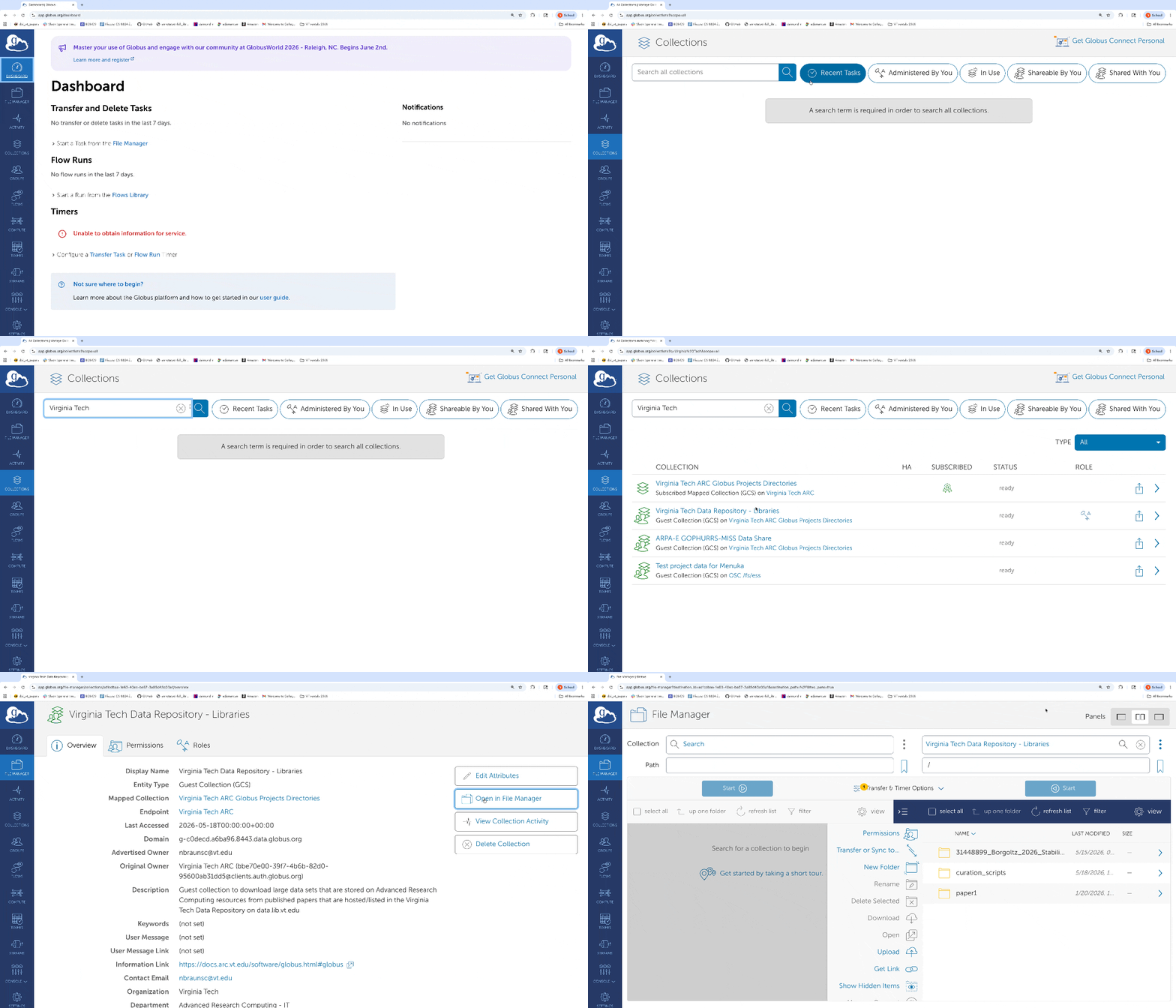
Once you have an endpoint for the data, you need to navigate to the collection “Virginia Tech Data Repository - Libraries” through the collections tab in the left panel on globus.org after you log in. Once the collection is located, open the “File Manager” to start a transfer.
The screen recording below shows the steps to navigate to this collection (once you have logged in to your Globus account) and open the file manager to start the transfer:

Step 3: Select the path of the data and the destination and start the transfer
You will have to select which folder in your own endpoint (GCP or Globus subscription) that you would like the data to be transferred to and specify the path to the data in the Virginia Tech Data Repository. When you are in the “Transfer” window, there should be two panels. If you do not see two panels right away, you might have to click the button that says ‘transfer or sync data from one collection to another’. One panel will be the guest collection and the other will be your endpoint. In this screen recording below, the guest collection is on the right and the Globus Connect Personal is on the left (named test-gcp in this example).
In the “Path” field, you will put the path to the data and then start the transfer. Please reference the screen recording to see a transfer from the guest collection into a GCP named test-gcp.
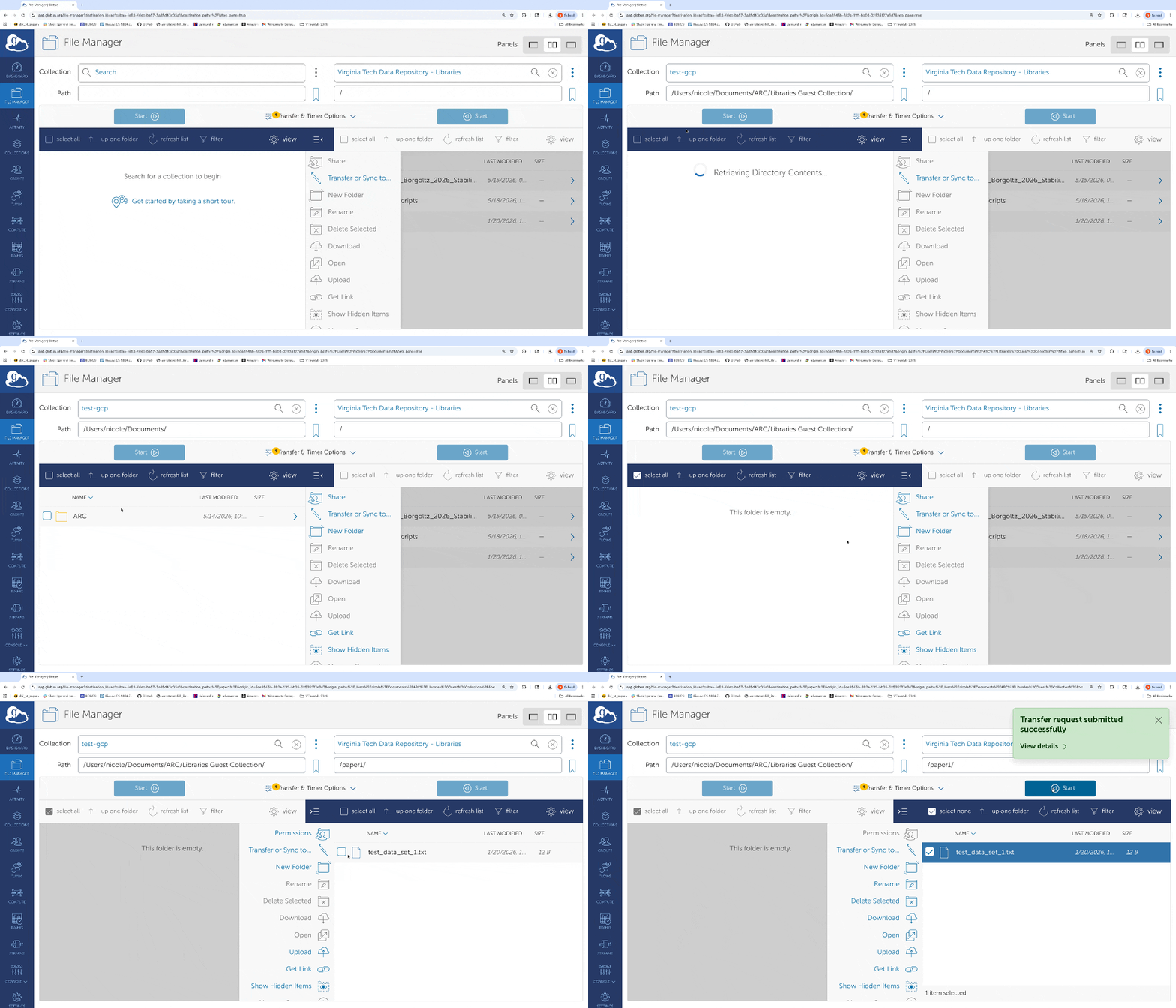

For additional details about how to login and transfer files with Globus, you can refer to Globus’s documentation. This also demonstrates how you can confirm that the transfers were successful.
If there are still additional questions or issues, please feel free to submit a 4help ticket.